
Live Photo Maker
Turn a video or animated GIF into paired Live Photo files. Choose a clip up to 5 seconds long, pick your cover, and download the matching JPG and MOV files for import into your photo library.
Choose your video or GIF
Preview
Your animation and cover preview will appear here.
Create your own GIF with AI
You can also generate a GIF from text or a photo on AI gif hub. Download it, then upload it here to convert it to Live Photo files.
Video to Live Photo Converter
Turn a favorite moment from an existing video into Live Photo files. Choose a smile, a pet’s reaction, or a few seconds from a trip, then select the frame you want to see as the cover.
To convert MP4 to Live Photo files, choose your video and select the part you want to keep. You can also use MOV, M4V, or WebM files when your browser supports their video codecs. Your download includes a still cover and its matching motion clip.
Turn a GIF into a Live Photo
Give an animated GIF a cover frame and export it as paired Live Photo files. Reaction GIFs, animated illustrations, and short looping animations can all be starting points. Choose an animated GIF up to 30 MB. GIFs with many frames or large dimensions may need to be reduced before processing.
Set a Background for Transparent GIFs
Choose a background color to fill any transparent areas in your GIF. Match it to the illustration or use a contrasting color to make the subject stand out. The selected background appears in the exported cover and motion clip. GIF-based exports have no sound.
Features of Our Live Photo Maker
Fine-tune your clip, choose its cover, and create paired Live Photo files directly in your browser.
Video and GIF Support
Start with an MP4, MOV, M4V, WebM, or animated GIF. Choose videos up to 100 MB or GIFs up to 30 MB. Video decoding support depends on your browser and the file’s codec.
Precise Clip Trimming
Choose where the motion starts and set a clip length from 0.1 to 5 seconds. Play a preview of your selected moment before creating the files.
Custom Cover Frame
Pick a frame from your selected clip to use as the still cover. Adjust the cover position to capture the expression or detail you want to see before playback.
Sound and Background Controls
Keep the original video sound when your browser supports AAC encoding. For transparent GIFs, select a background color to fill transparent areas.
Paired JPG and MOV Export
Download a ZIP containing a matching JPG cover and H.264 MOV motion file. Output preserves the source proportions, with a maximum of 1440 pixels on the longest side.
Free, Private, and No Sign-Up
Use the Live Photo converter without creating an account or spending credits. Your source video or GIF is processed locally on your device.
How to Turn a Video into a Live Photo
Choose your source, select a short moment, and export the paired files. Then use a compatible import method to save the result in your photo library.
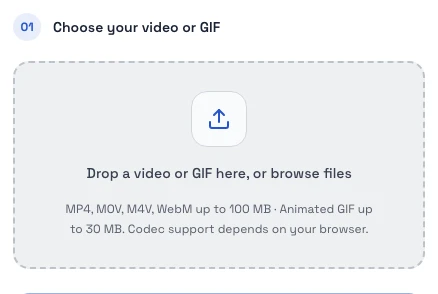
1. Choose Your Video or GIF
Select a file from your device or drag it into the tool. Wait for the preview to load so you can find the moment you want to convert to Live Photo files.
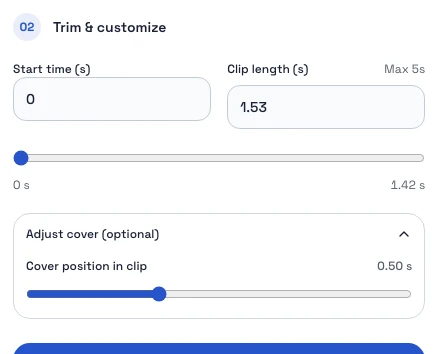
2. Trim the Motion and Pick a Cover
Move the start position to the beginning of your chosen moment and adjust the clip length. Select a cover frame within that clip, then play the preview to check the motion. For video, you can keep sound when supported. For a transparent GIF, choose the background color before exporting.
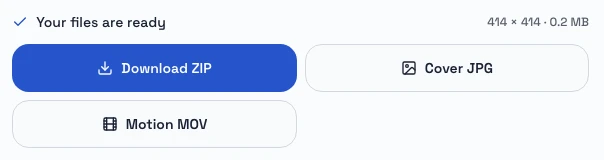
3. Download and Import the Paired Files
Select Create Live Photo files, then download the ZIP when processing finishes. Unzip it to access the matching JPG and MOV. Keep both files and their matching filenames together. Follow the device-specific instructions below to import them and check LIVE playback.
Save Your Live Photo on iPhone or Mac
The download contains two paired files. Your photo library needs to recognize their pairing during import to display the result as a Live Photo.
Understand the Live Photo File Format
This tool exports a JPG for the still cover and a MOV for the motion. Both contain pairing information, and the ZIP keeps them together for download. Preserve the matching filenames when extracting and importing your files.
Import the Files on iPhone
- Download the ZIP and open it in the Files app to extract its contents.
- Select both matching files, open the share menu, and try the save-to-Photos option if it is available.
- Open Photos and check the imported item for the LIVE badge and motion playback.
Available save options and pairing behavior vary by device and software version. If you get two separate items, use an app that supports importing paired Live Photo files or try the Mac import method below.
Import the JPG and MOV into Photos on Mac
- Extract the ZIP, then open Photos and choose File → Import.
- Select both matching files together and complete the import.
- Open the imported item and check for LIVE playback.
After a successful import, iCloud Photos can sync the item to your iPhone when enabled on both devices.
Live Photo Maker FAQ
Is this Live Photo Maker free to use?
Yes, creating and downloading Live Photo files is free, with no account or credits required. File-size limits and browser compatibility still apply.
Are my videos or GIFs uploaded to a server?
No, your videos and GIFs stay on your device during conversion. The tool processes the file locally in your browser and creates the download there.
What file sizes, clip lengths, and resolution are supported?
The tool supports videos up to 100 MB and GIFs up to 30 MB, with exported clips of 0.1–5 seconds and a maximum of 1440 pixels on the longest side. GIFs must contain 2–500 frames. Large dimensions and total decoded image size can also affect whether a GIF can be processed.
Can I keep the original video sound?
Yes, when your browser supports the required AAC audio encoding. Enable Keep video sound before creating the files. If audio encoding fails, turn this option off and try again. GIF exports have no sound.
Why did my iPhone save two separate files?
The save method may have imported the JPG and MOV separately without recognizing their pairing. Keep both matching files and try a compatible Live Photo import app or import them together using Photos on Mac. Check the imported item for a LIVE badge and motion playback.
Can I use the result as a live wallpaper?
Wallpaper availability depends on your iPhone, iOS version, and the imported item. First confirm that the result plays as a Live Photo in Photos, then check the options available in your wallpaper settings. Successful file export alone does not establish wallpaper compatibility.
Can I turn a still photo into a Live Photo?
Yes, by first animating your still photo into a GIF with a separate tool, then converting that GIF here. Use the image-to-GIF tool, download the generated GIF, and bring it into this Live Photo Maker. The AI generation step has its own account and credit requirements. Converting an existing GIF here is free.Animate a photo with Image to GIF
How long does conversion take?
Processing time depends on your device, the source dimensions, and the selected clip length. Keep the page open while your files are being created. A smaller source or shorter clip can reduce the processing workload.
Create Your Live Photo Files
Choose a video or animated GIF, select your favorite moment, and export its matching cover and motion files.