


Use our free online GIF BG remover to make your animated GIF transparent. Drop in a GIF, remove its background in your browser, and download a transparent GIF, a transparent APNG, or a GIF with your own background color.
Free · No sign-up · No added watermark · Your GIF stays on your device
Your GIF is processed on this device. AI model files are downloaded when needed.
Need an animation first? Create one with our AI GIF generator or image-to-GIF tool.
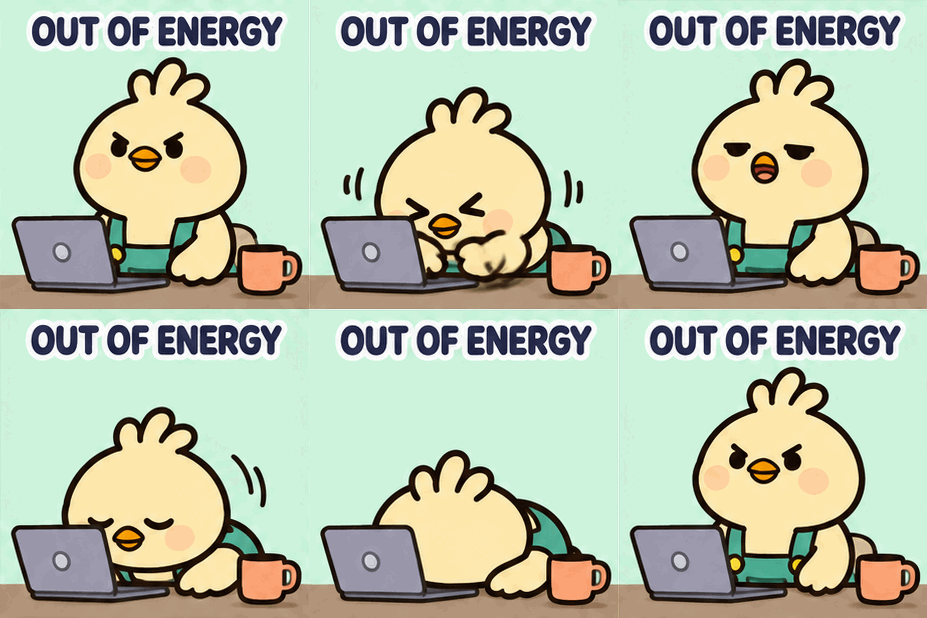
Real GIFs processed with this tool. Compare the original animation with the transparent result.



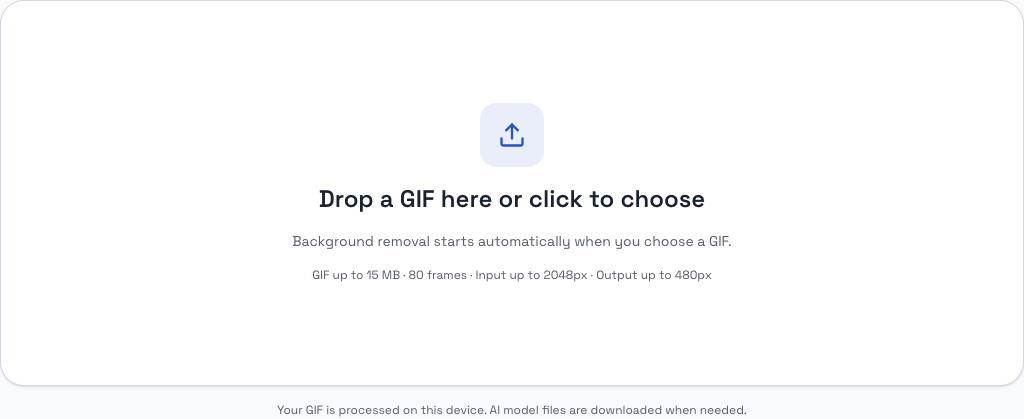
Choose an animated GIF from your device. Removal starts automatically in your browser—no Photoshop or desktop app needed.
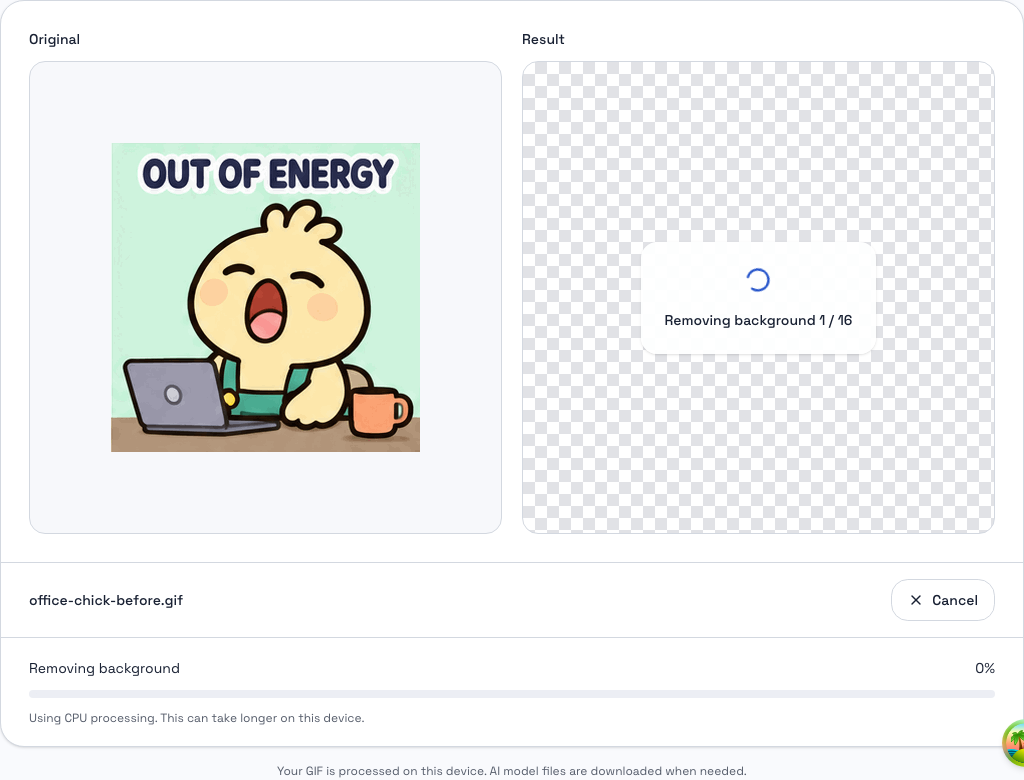
AI separates the subject from the background across each frame. Follow the progress or cancel at any time.
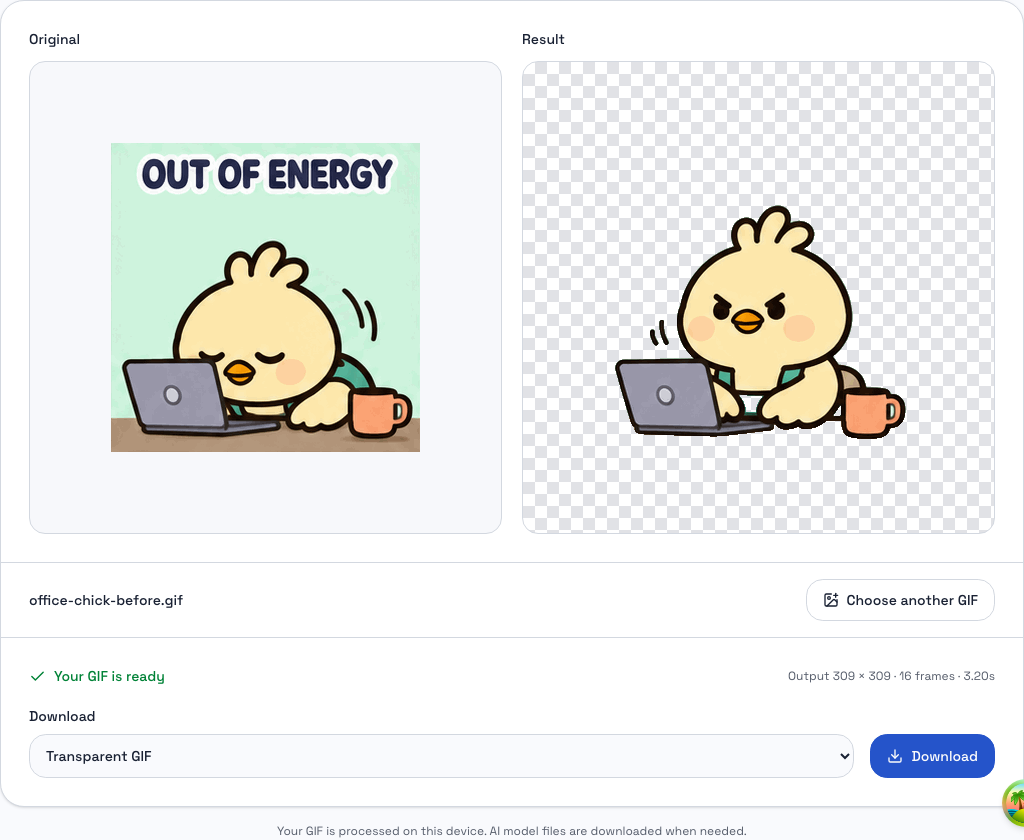
Check the result on the transparency grid. Download a transparent GIF or APNG, or add a solid background color.
Remove GIF backgrounds without editing frames one by one. AI handles the cutout so you can go straight from upload to preview.
No account, credits, or subscription needed. Process one GIF at a time within the file and frame limits.
The tool runs in your browser. Your GIF is not uploaded to a server for background removal; only the AI model files need downloading.
Keep the animation with a transparent background. GIF supports fully transparent pixels, but its limited palette and hard transparency can affect fine edges.
Keep semi-transparent edges in an animated PNG. Choose APNG when your destination supports it; not every platform accepts this format.
Replace the removed background with a solid color. The selected color is included in the downloaded GIF.

Remove the background so your animation blends into the page. Preview the edges against your website’s colors and check the file size before publishing.
Turn a person or cartoon into a sticker-style animation. Check that your destination accepts animated GIFs before uploading the result.
Remove the rectangular background around an animation for your slides. Check transparency and playback in your presentation software before presenting.
Yes, GIF files can have transparent backgrounds while staying animated. The checkerboard in the preview represents transparent pixels and is not included in your download.
Yes, this GIF background remover is free to use, with no sign-up or credits required. Downloads have no added watermark. File size, dimensions, and frame limits apply.
Yes, you can remove a white or black background from an animated GIF with this tool. AI identifies the subject rather than deleting every matching color, so results depend on how clearly the subject stands out.
You can try GIFs with green backgrounds, but this tool uses AI subject detection rather than dedicated green-screen keying. There are no color-key, tolerance, or green-spill controls.
Yes, your GIF stays animated after background removal, with its frame timing and loop settings preserved.
Background removal can affect colors and fine edges, and output is limited to 480 px on the longest side. GIF files are re-encoded with a limited palette. APNG preserves semi-transparent edges but cannot restore detail missing from the original.
The tool supports animated GIFs up to 15 MB, with 2–80 frames and input dimensions up to 2048 px per side. Complex files may hit the total pixel limit sooner. Output is up to 480 px on the longest side.
The first GIF takes longer because your browser needs to download about 100 MB of AI resources. Later visits may reuse the browser cache. Processing time also depends on your device, GIF dimensions, and frame count.
No, your GIF is not uploaded to a server; background removal and export run in your browser. An internet connection is needed to download AI resources when they are not cached.
Choose transparent GIF when your destination requires GIF files, or APNG for semi-transparent edges where supported. APNG is animated PNG; this tool does not export individual PNG frames. Choose GIF with background color for a fixed solid background.
No, this tool accepts animated GIFs, not video files. Convert your video to a GIF first, then upload it within the file and frame limits.
No, batch processing is not currently supported. Process one GIF at a time, download the result, then choose another GIF.
You can try an animated logo in GIF format, but AI may remove lettering or fine lines along with the background. Check the result carefully; there are no manual erase or restore controls.
Drop in an animated GIF and download a transparent version. Free, with no sign-up.