How to Make a GIF from Text with AI
Turn a text prompt into an animated GIF. Follow the steps, copy a tested prompt, see real results, and fix weak motion or a jumpy loop.
 AI GIF Hub
To make a GIF from text with AI, describe one subject, one clear action and a return to the opening pose, choose a style and aspect ratio, then generate the animation. Watch the result for motion and a clean loop before downloading the GIF.
Here is a complete walkthrough using AI GIF Hub, including the original prompt and a real animated result. The example was generated through our website test on November 9, 2026.
New accounts receive 22 trial credits. One Text to GIF generation uses 22 credits.
What you need before you start
Have a short animation idea and an account with enough credits. You can write your prompt before signing in. The editor displays the cost before submission, and the current Text to GIF cost is 22 credits. New accounts receive 22 signup credits, enough for one attempt. Current packs and subscriptions are on the pricing page.
For a first attempt, choose something you can describe in a single movement, such as a happy hop, a wave or a startled recoil. A plain background makes the action easier to inspect.
Step 1. Write a prompt that describes movement
Open the Text to GIF generator and type your idea into Describe your GIF. Give the character an opening pose, an action and a way back to the start.
For the worked example, we used this exact prompt.
An original adorable chibi anime girl with a short mint-green bob, a yellow
star hair clip on her left side, big violet eyes, rosy cheeks, and an
oversized lavender hoodie. Full body, plain warm cream background.

She starts smiling with hands near her chest, squeezes her eyes shut
with delight, makes one small happy hop with both hands raised, lands
softly and returns to her opening smile.

Keep her face, hair clip, outfit and exactly two arms and two legs
consistent. Fixed camera, centered, room above her head, smooth
2.56-second looping animated GIF. No text or watermark.
The movement has three readable beats. She prepares to jump, hops with her hands raised, then lands and recovers her opening smile. The fixed camera and space above her head give you a stable view of the whole action.
The duration in this prompt records what we submitted for that test. Timing is set automatically by the current editor, so describe the action in beats when writing your own version.
Step 2. Choose the style, model and aspect ratio
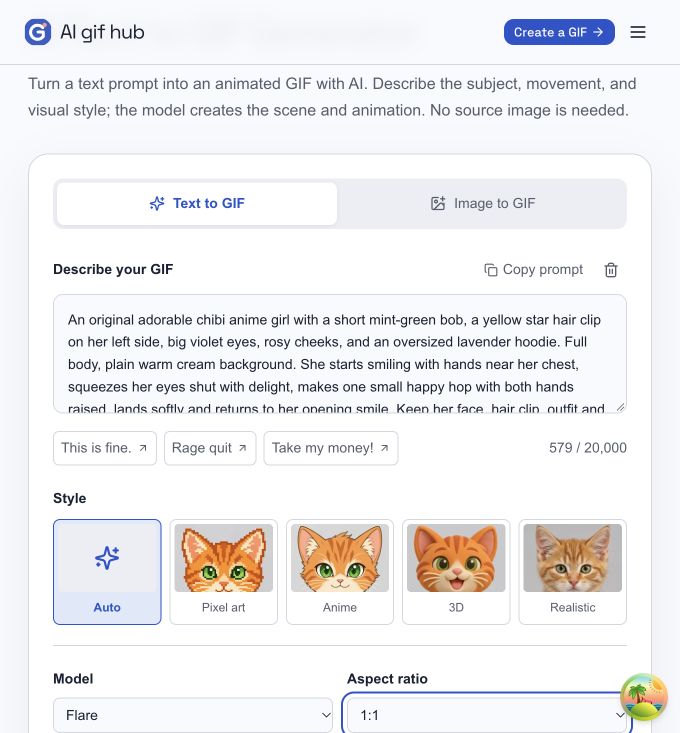
For this example, select Auto, Flare and 1:1. Auto lets the anime description in the prompt guide the appearance. The current editor also offers Pixel art, Anime, 3D and Realistic presets, plus Sunburst as a model option.
Use a ratio that fits the destination. A square works for a reaction image. Portrait framing gives a standing character more vertical space, while landscape framing gives a wider scene room.
The editor sets resolution, frame count and timing automatically. Before submitting, read the displayed cost and confirm that you have permission to use the material and agree to the Terms of Service.
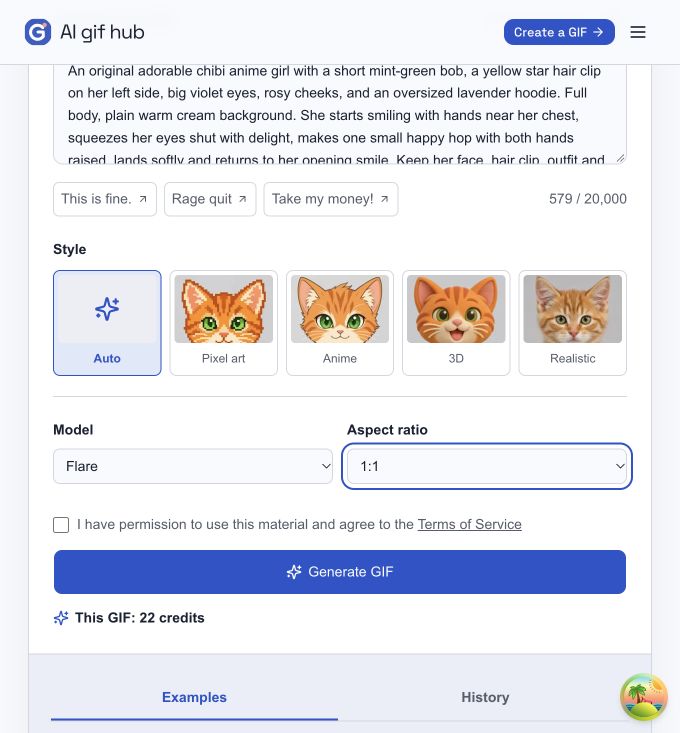
The screenshots show the current form with the original test prompt filled in. The generated example below comes from the earlier recorded test.
Step 3. Generate and check your animation in History
Click Generate GIF. If a sign-in dialog opens, complete login, check your prompt and settings, and click Generate GIF again to submit the task.
Follow the task status while it runs. Once completed, open the result in History and watch several repeats. Our recorded example took about 11 minutes from task creation to completion. Queue and provider wait times vary.
The actual happy-hop result
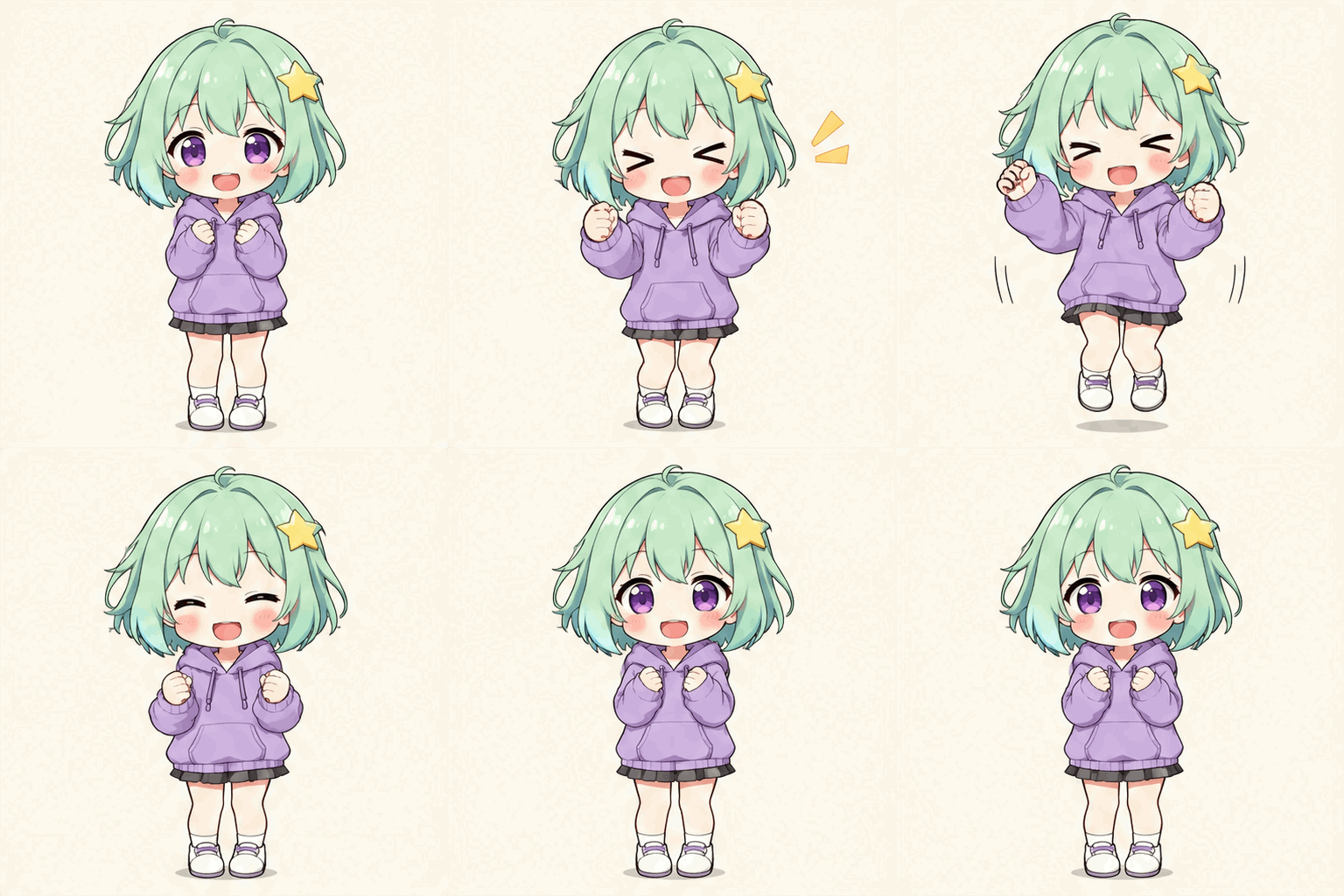
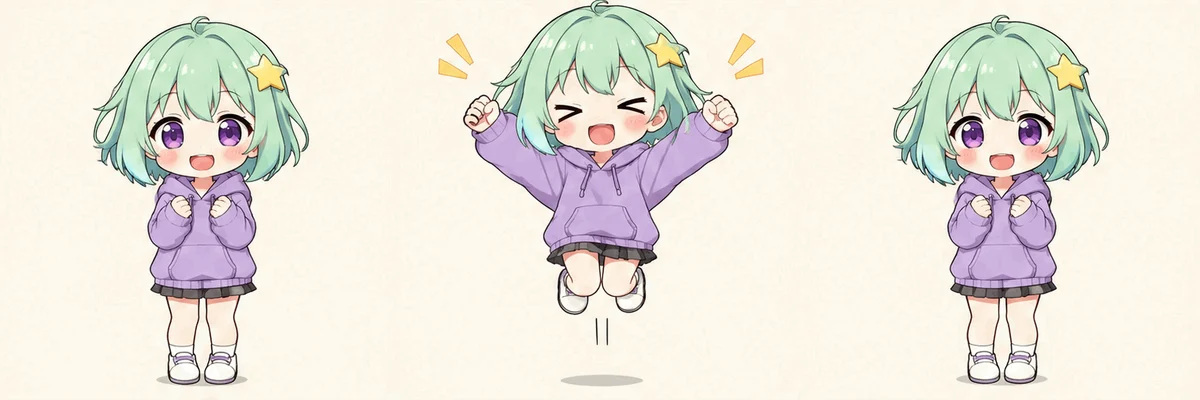
This is a real GIF example generated using the GPT Image 2.6 Flare model on AI GIF Hub. It has 16 frames, runs for 2.56 seconds per cycle, measures 512 × 512 pixels and occupies 1,031,209 bytes, about 1.03 MB. The request used the 1K setting available at the time.
The motion is readable and the mint hair, star clip and lavender hoodie remain recognizable through the sequence. The frame sheet below lets you inspect the pose changes alongside the animation.
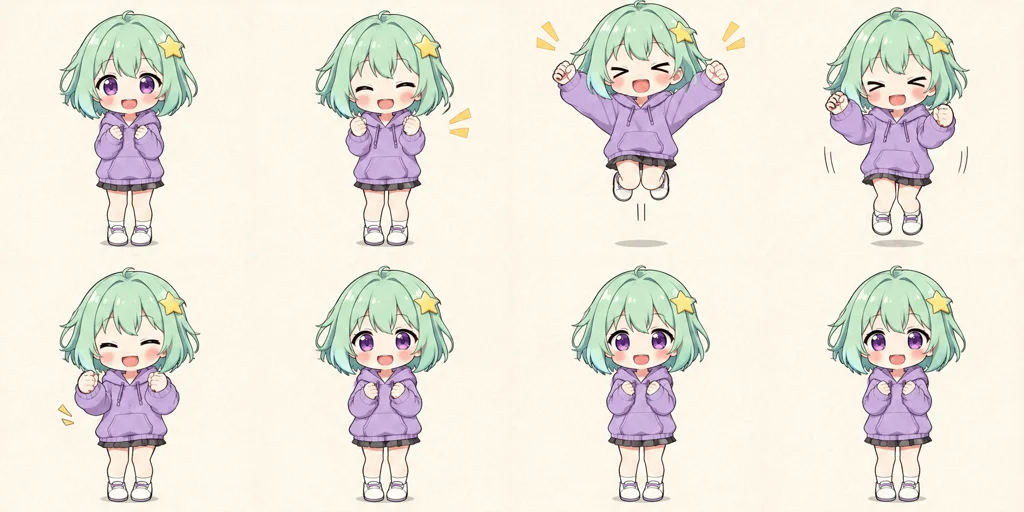
Before keeping your result, check three things.
- The action reads clearly. You can identify the main movement at normal playback speed.
- The character stays recognizable. Inspect the face, clothing, hands and any moving prop.
- The return feels natural. Watch the transition from the last pose back to the first.
A looping file can still have a visible jump at the join. Repeated playback makes that easier to spot.
Step 4. Download your GIF
When you are happy with the result, click Download GIF in History. Open the saved file and watch it once more, then check it in the app or page where you plan to share it.
To revise the idea, choose Edit prompt and change the instruction that caused the problem. Generate again submits another generation with the current prompt and settings, using another 22 credits at the current rate.
If the result was created but its preview could not load, try the preview reload control first. Reloading the preview uses the existing result.
How to write better text-to-GIF prompts
Use this sequence to plan a short animation.
Subject and appearance → starting pose → main movement → reaction hold → return pose → framing.
The happy-hop prompt names the features that should persist, describes the movement in order and gives the raised hands room. You can adapt that structure to your own character by replacing its appearance and action.
Give the action a visible range
“A happy character” leaves the motion open. “Starts with hands near her chest, makes a small hop with both hands raised, then lands” tells the model how the pose changes.
One of our earlier text-only examples needed a more specific instruction. The first frog weightlifting result reduced an overhead lift to a side curl. We revised the prompt to request a deep squat, both hands fully overhead, then a return to the squat. The selected result is below.
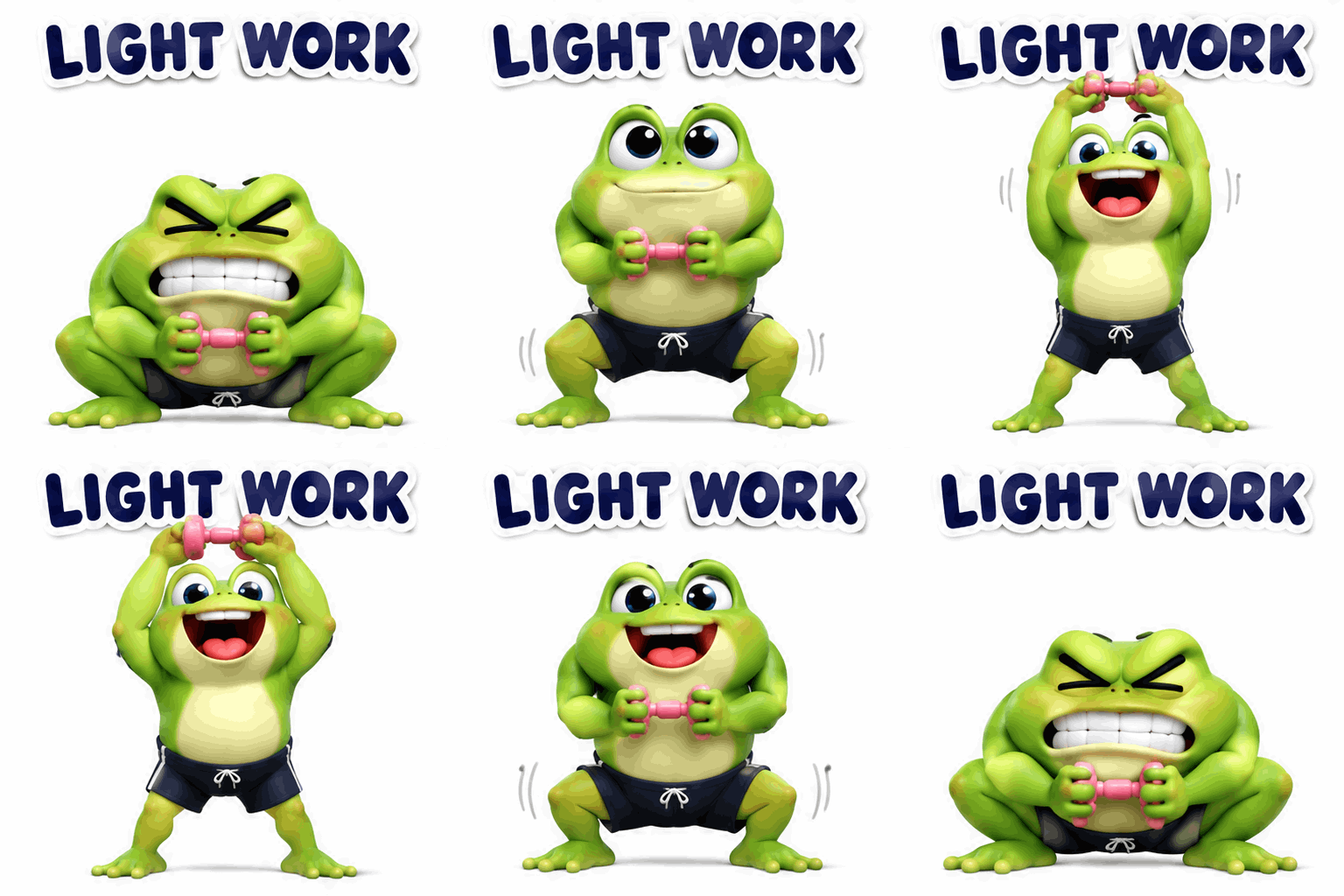
This is another real GIF example generated using the GPT Image 2.6 Flare model on AI GIF Hub. It is also 512 × 512 pixels, 16 frames and 2.56 seconds. The tool page has its full original prompt.
Describe how the movement ends
“Return to her opening smile” gives the recovery a destination. If the character moves a prop, include its final position too. Keep the camera fixed when the loop depends on matching the opening composition.
Keep captions short
For lettering, quote the exact phrase and specify its position, contrast and size. Inspect the words throughout playback. A short caption gives you fewer letters to check, and leaving space above the character helps keep the action clear.
Fix weak motion, distorted characters and a jumpy loop
| What you see | What to change in the next prompt |
|---|---|
| The character barely moves | Name the starting and peak poses. Describe a visible change, such as hands rising from chest height to overhead. |
| Hands or props change shape | Simplify the action and reduce extra gestures. Name the features and prop that should remain consistent. |
| The jump leaves the frame | Request full-body framing, a fixed camera and room above the subject for the whole movement. |
| The loop snaps back | Describe the recovery to the opening pose, including the position of hands and props. |
| The caption flickers or changes spelling | Shorten the phrase and specify a fixed position. For precise lettering, add the caption afterward in a text editor. |
Change one instruction at a time so you can judge its effect. Each new generation uses credits, and results can vary even when the prompt stays the same.
If your next project starts with an existing character or photo, the Image to GIF tool accepts a visual reference and a motion prompt.
Make your first animation from words
Start with one character and a short action you can describe from beginning to end. Use the happy-hop prompt as a worked example, then replace its subject and movement with your own idea.
Prepare the prompt, review the 22-credit cost, then generate and inspect the loop.
Frequently asked questions
- Can AI make an animated GIF from just text?
- Yes. Describe the subject, movement, visual style and return to the opening pose in Text to GIF. AI GIF Hub generates the scene and animation from your description.
- Can I make a GIF from text for free?
- New AI GIF Hub accounts receive 22 signup credits, enough for one Text to GIF generation at the current 22-credit cost. Further generations use additional credits. Check the cost and your balance before submitting.
- Do I need to sign in before writing my prompt?
- You can prepare the prompt and choose settings before signing in. Generation requires an account. If Generate GIF opens the sign-in dialog, complete login, review your draft, and click Generate GIF again to submit.
- Can I put words inside the generated animation?
- Yes. Include a short phrase in quotation marks and describe its position and appearance. Inspect spelling and stability across the animation. If precise typography matters, add the caption afterward in an editor with text controls.
- Can I choose the GIF duration and resolution?
- The current editor sets resolution, frame count and timing automatically. You can select a style, Flare or Sunburst, and an aspect ratio. The worked example is 512 × 512 pixels, 16 frames and 2.56 seconds. Inspect your own output because requested settings and actual dimensions can differ.
- How long does text-to-GIF generation take?
- Wait time varies with the provider and queue. The worked example in this guide took about 11 minutes in a local end-to-end test. Use the task status to track progress and check History for the result.