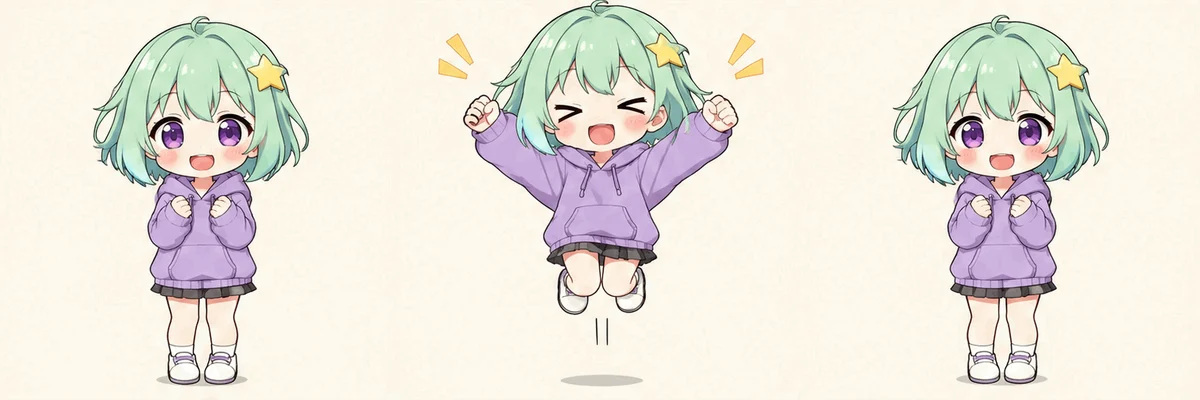
How to Animate a Photo into a GIF
Animate a photo into a GIF with AI. Follow the upload and prompt steps, compare images with animated results, and fix face drift or a jumpy loop.
 AI GIF Hub
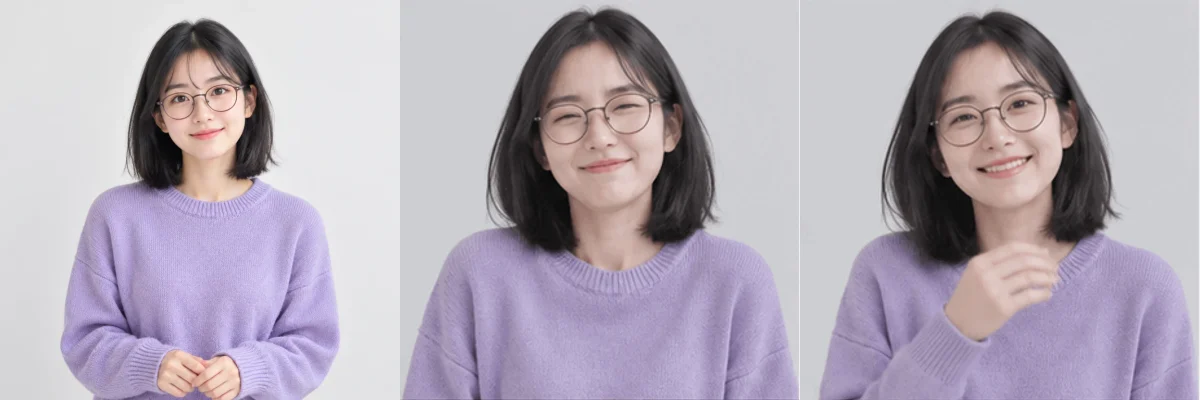
To animate a photo into a GIF, upload one clear image, describe what should move and what should stay still, then generate the animation with AI. Watch the subject and the loop transition before downloading the GIF.
This guide walks through the Image to GIF workflow on AI GIF Hub. You will see a portrait-animation example with its original prompt, plus a real illustration-to-GIF result generated using our GPT Image 2.6 Flare model.
Choose Image to GIF in the editor. Each generation uses 24 credits.
Choose a photo with room for the movement
Pick an image that clearly shows the subject and the area you want to animate. A shoulder-up portrait works for a smile or a small head movement. For a wave, include the hand and arm. For a pet’s head tilt, leave space around its ears.
A few checks make the reference easier to work with.
- Keep the subject sharp. Visible eyes, facial features and outlines give the model more information.
- Leave a movement margin. A hand, ear or head pressed against the edge has little room to move.
- Choose a manageable action. A small expression change needs less unseen detail than turning a person fully around.
- Use a photo you have permission to animate. For a portrait, get the person’s agreement before using their image.
For product photos, inspect labels and straight edges after generation. For a landscape, decide which element should move, such as water or leaves, and name the buildings or landforms that should stay still.
Step 1. Upload the photo in Image to GIF
Open the Image to GIF generator and click Choose an image. Select one JPG, PNG or WebP file up to 8 MB. The selected picture appears in the form.
If you start from the homepage, switch to Image to GIF first. Check the preview before continuing, especially if you have previously selected a different image.
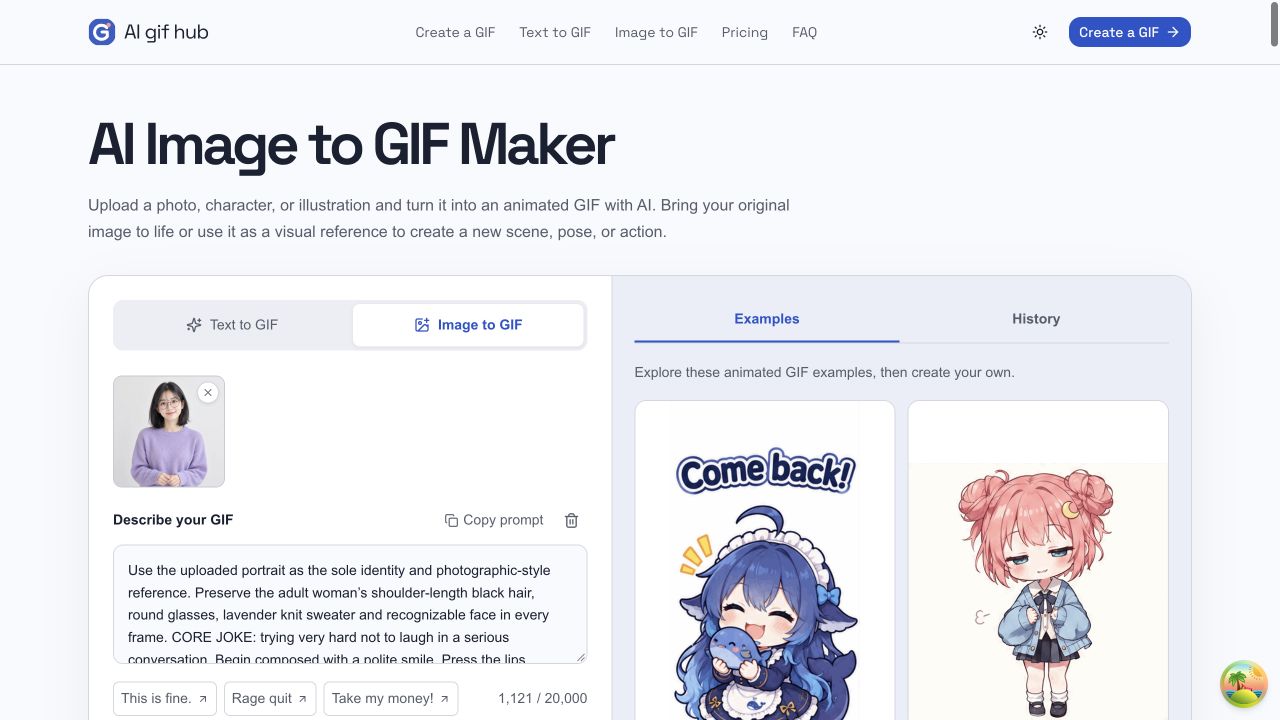
Here we have selected the portrait used in the example below. The animations on the right are in the editor’s Examples tab. Your completed generation appears in History.
Step 2. Describe the action and the details to keep
In Describe your GIF, explain the movement in order. Include an opening pose, the main action and a recovery to the start. Then name the features, background and framing you want to retain.
For the portrait example, we used the following prompt when preparing the animation in ChatGPT.
Use the uploaded portrait as the sole identity and photographic-style
reference. Preserve the adult woman’s shoulder-length black hair, round
glasses, lavender knit sweater and recognizable face in every frame.

CORE JOKE: trying very hard not to laugh in a serious conversation.
Begin composed with a polite smile. Press the lips together as the cheeks
puff slightly, eyebrows rise and eyes begin to crinkle. Her shoulders then
shake in two restrained little giggles; she quickly brings one hand to
cover her mouth, leans forward with an unmistakable delighted laugh,
catches herself and sits upright trying to look serious again.
End in the original composed pose.

Keep realistic facial anatomy, exactly two hands, rigid glasses and
natural hair movement; no melting or extra fingers. The whole upper body
follows the laughter. Clear buildup, burst of emotion, comic recovery,
naturally joined loop.

Square 1:1, unchanged light gray background, fixed camera, centered upper
body with safe margins. Aim for 3–4 seconds with genuinely evolving
movement, not a long still hold. No text, captions, props, logos or watermark.
The prompt gives the expression a buildup and a release. It also names the glasses, sweater and background so you can judge how well those details survive the movement.
The timing line records the original prompt for this example. In the current AI GIF Hub editor, timing is set automatically. For your own first attempt, you can simplify the action to a smile, a brief head tilt and a return to the opening pose.
Step 3. Choose the look, framing and model
Choose Auto when you want the uploaded photo to guide the appearance. The editor also offers Pixel art, Anime, 3D and Realistic presets. Select Flare or Sunburst under Model, then choose an aspect ratio.
Match the ratio to your intended framing. A square can work for a portrait reaction. A tall composition gives a standing subject more vertical space. Check that the requested movement fits inside the chosen shape.
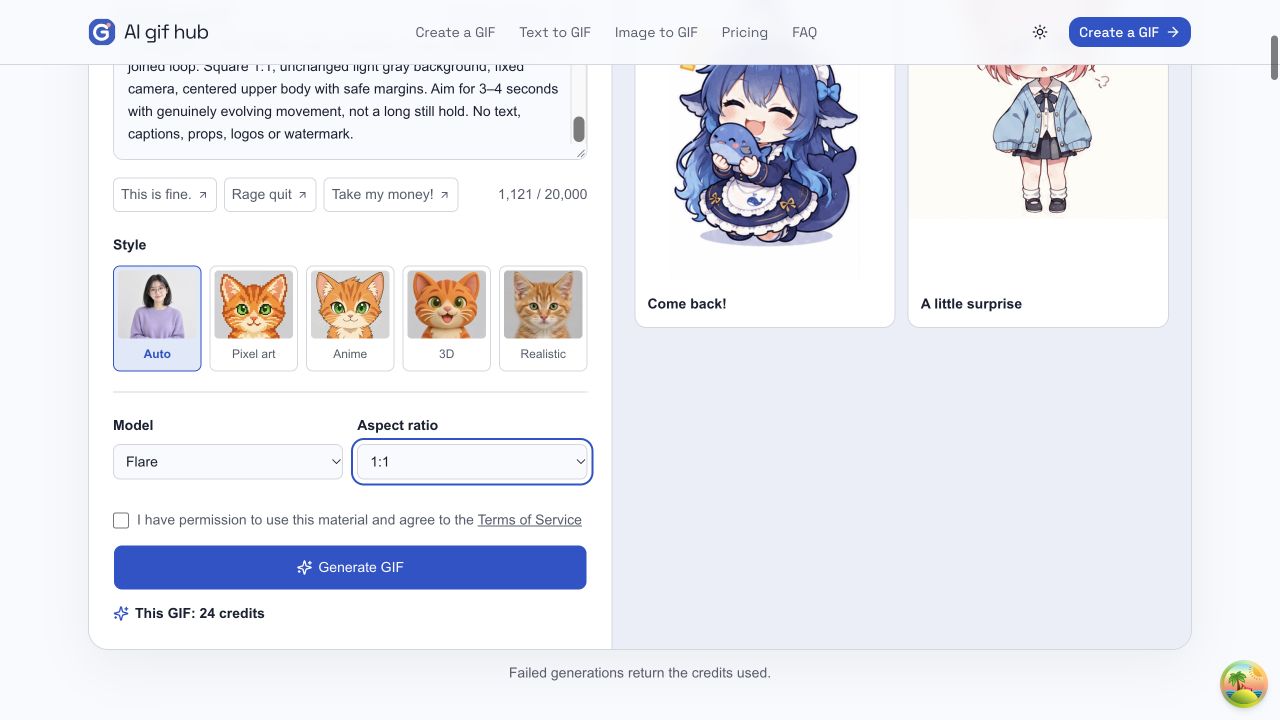
The current Image to GIF cost is 24 credits. New accounts receive 22 signup credits, so add credits before starting a photo animation. You can review the available options on the pricing page.
Confirm that you have permission to use the image and agree to the Terms of Service, then click Generate GIF. If prompted, sign in, review the selected image and settings, and click Generate GIF again to submit.
Step 4. Inspect the animation and download the GIF
Open the completed result in History and watch several repeats. Check the face or main object first, then the background and the transition from the ending back to the start.
Once the result looks right, click Download GIF. Open the saved file and check it in the app or page where you plan to use it.
Portrait example with the original image and result
This editorial example was created in ChatGPT using an AI-generated portrait. It shows how the written action plays out across a photo-style animation.
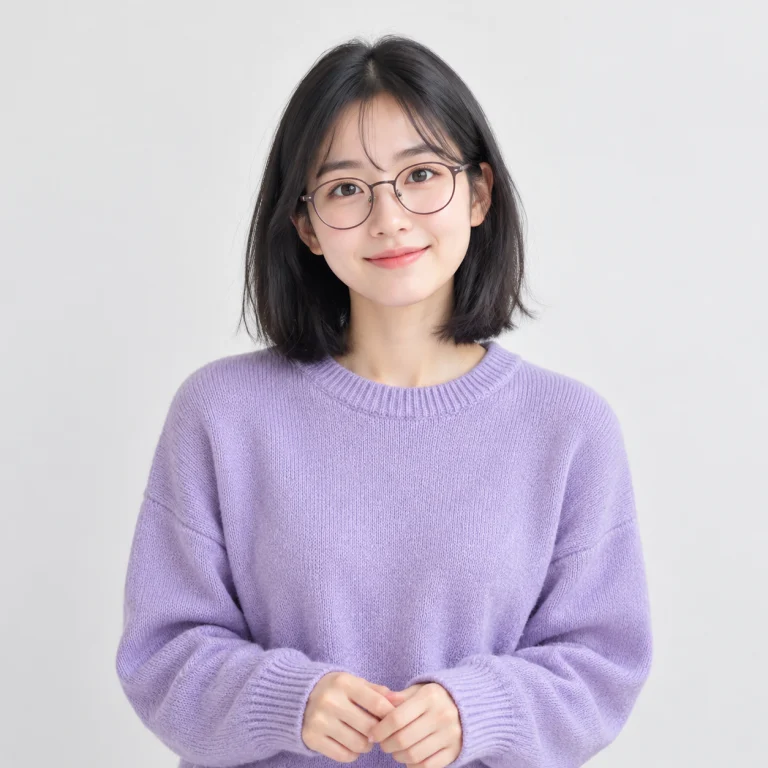
Original image
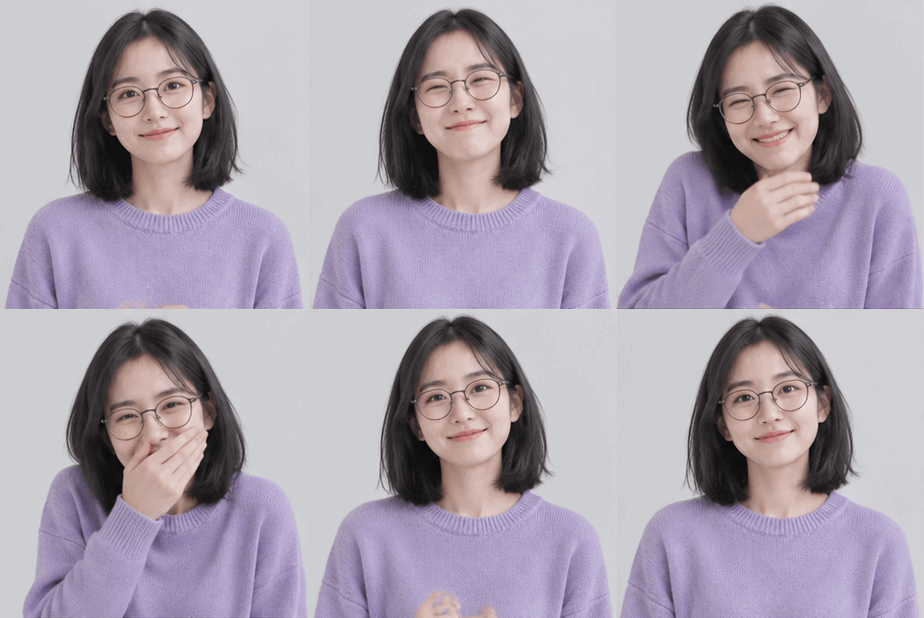
Animated GIF
The result moves from a restrained smile to closed eyes and a forward lean with one hand covering the mouth, then recovers an upright pose. The black hair, round glasses and lavender sweater remain recognizable.
The downloaded GIF measures 308 × 309 pixels, contains 16 frames and runs for 3.52 seconds per cycle. Its file size is 691,005 bytes, about 0.69 MB. These are measured properties of this specific example.
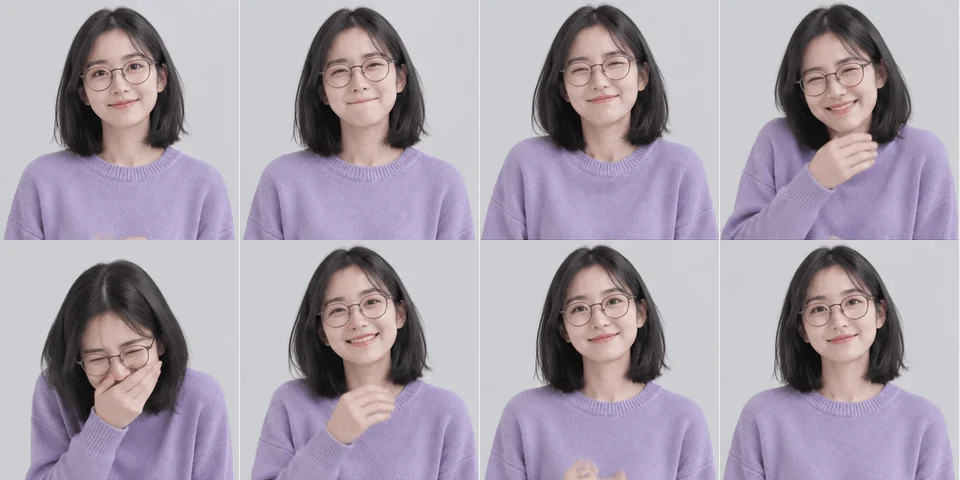
Compare the hand, glasses and face across the frames. This example also shows why it helps to include the upper body when the action involves leaning or bringing a hand to the mouth.
A real image-to-GIF example from AI GIF Hub
The same upload-and-prompt workflow also works with illustrations. This is a real example generated using the GPT Image 2.6 Flare model on AI GIF Hub.
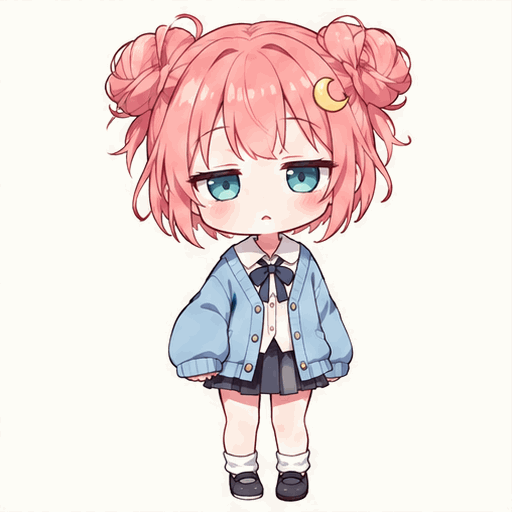
Uploaded character reference
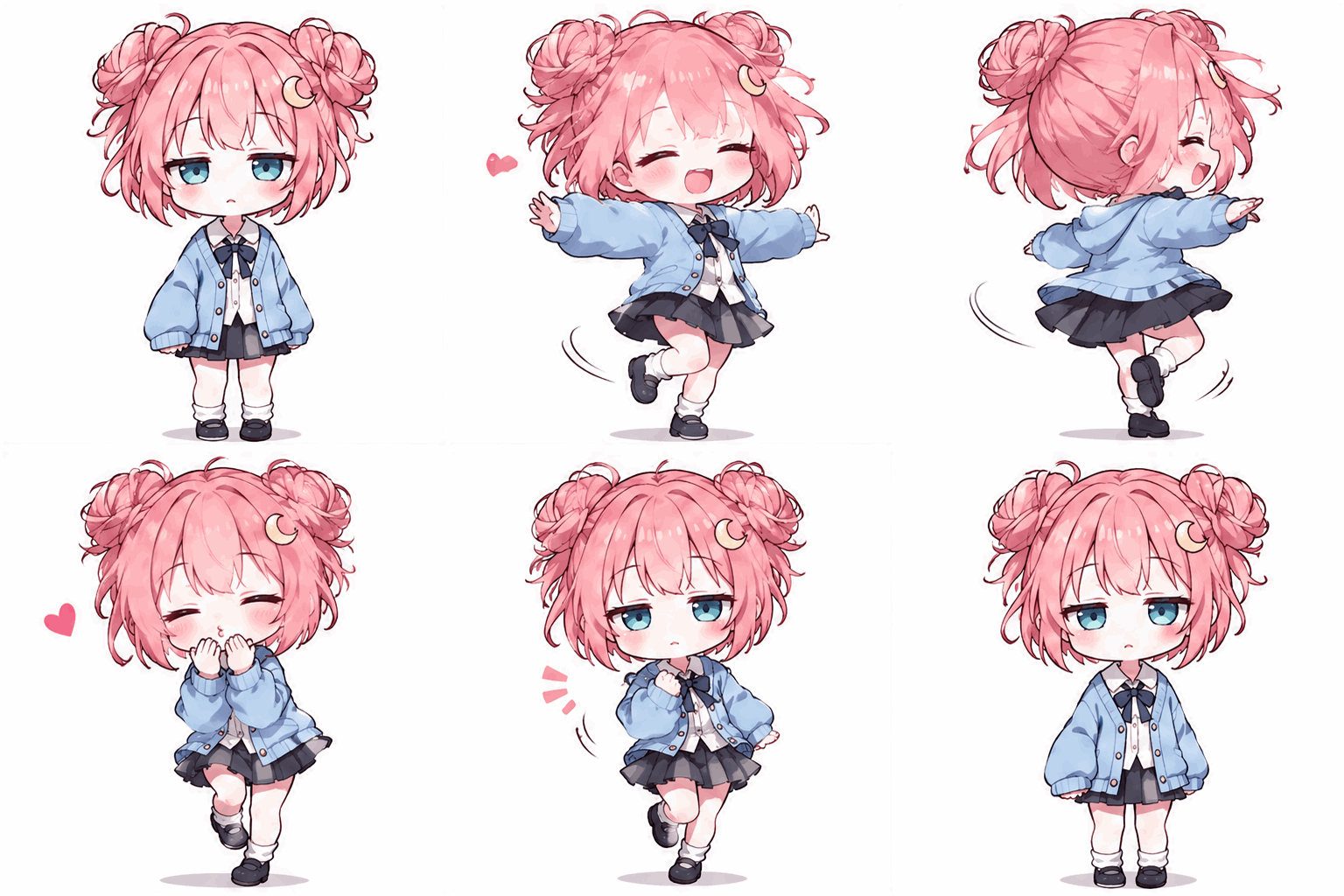
GIF generated on AI GIF Hub
The original instruction was written in Chinese. Its English translation is below.
The girl dances happily, spins around, blows a kiss, then naturally
returns to her starting pose.
This generation used Anime style, Flare and Auto aspect ratio. The output is 512 × 512 pixels, 16 frames and 2.56 seconds, with a file size of 1,063,102 bytes, about 1.06 MB.
The recognizable pink twin buns, crescent hairpin and blue cardigan give you clear features to compare between the input and the animation. A full-body reference gives the dance room to develop.
Fix face drift, unwanted movement and a jumpy loop
Use the result to identify the next change. Keep the reference image the same while revising one motion instruction at a time.
| What you see | What to try next |
|---|---|
| The face changes during the action | Reduce the head turn or expression change. Name the hairstyle, glasses and other defining features to retain. |
| The subject barely moves | Describe a visible change between the opening and peak poses, such as a head tilt followed by an upright recovery. |
| Hands or moving objects look distorted | Simplify the gesture and use a reference that shows the relevant body part or object clearly. |
| The background moves unexpectedly | Ask for the original background and a fixed camera. Name the objects that should remain stationary. |
| The movement leaves the frame | Choose a reference with more space around the subject and request framing that contains the whole action. |
| The loop jumps back suddenly | Describe the return to the opening pose, including the position of the head, hands and any props. |
Use Edit prompt to revise the instructions. Each new generation uses another 24 credits at the current rate. If a completed GIF’s preview fails to load, try reloading the existing preview before submitting a new generation.
Animate your first photo
Start with a clear subject and a short action. Describe what moves, what stays recognizable and how the motion returns to the opening pose, then inspect the downloaded GIF.
If you want to create a new character or scene from words, the Text to GIF generator accepts a written description. Our text-to-GIF tutorial includes a complete prompt and a real generated example.
Switch to Image to GIF, upload one image and review the 24-credit cost.
Frequently asked questions
- Can I turn a single photo into an animated GIF?
- Yes. Upload one photo and describe the movement you want. Start with a visible subject and a small action, such as a smile, head tilt or steam rising from a cup. Check the generated animation for changes to details you want to keep.
- Which image formats can I upload?
- AI GIF Hub accepts one JPG, PNG or WebP image up to 8 MB in Image to GIF. Export other formats to a supported image format before selecting the file.
- Can I animate a photo for free on AI GIF Hub?
- Image to GIF currently costs 24 credits per generation. New accounts receive 22 signup credits, so you need additional credits for a photo animation. Those signup credits can cover one Text to GIF generation instead.
- Will the person’s face stay exactly the same?
- Facial details can change during generation. Use a sharp reference, name the features to retain and begin with a small movement. Inspect the face, eyes, glasses and hands across the animation before using the result.
- Can I make only one part of the photo move?
- You can describe the area to animate and ask for everything else to remain still. The current editor uses a text prompt for this direction. Review the whole result because details outside the intended moving area can also change.
- Can I choose the GIF length or frame count?
- The current editor sets resolution, frame count and timing automatically. It uses a 16-frame, 160-millisecond-per-frame request, corresponding to 2.56 seconds. The actual downloaded file determines the output dimensions and timing.
- Can I animate an illustration with the same tool?
- Yes. Image to GIF also accepts character artwork and illustrations. Use Auto to let the reference guide the appearance, or choose a style preset. Name the defining features to preserve and describe the action.